How to send a text message in platform?
Supports both fixed-content SMS and dynamic-content SMS to meet diverse enterprise communication needs.
Applicable Scenarios
Marketing SMS
Prerequisites
- 01 If you don't have a LAAFFIC account yet, you can create a free account first.
- 02 Contact customer service/account manager to create an application for you
- 03 After successful creation, you can top up your account, prepare sufficient funds, and try sending SMS
Implementation
Step 1: Access the Sending Portal
Log in to the LAAFFIC client, go to SMS → Send SMS
Step 2: Fill in SMS Sending Elements
1. Select Application
Select an activated application account and determine the target country. If you don't have an application or haven't activated it, please contact customer service / account manager.
2. Add SMS Recipients
The following methods are supported:
- Upload Number File: You can download the number template we provide. Please note that the first line of the template is the "Number" header, and numbers should be entered starting from the second line, with each number on a separate line.
- Enter Numbers: You can directly enter multiple numbers, separated by comma(,).
- Select Number File: You can upload frequently used number files to the Number Files interface for unified management and repeated use.
Tip: Numbers must include the country code, otherwise messages cannot be delivered.
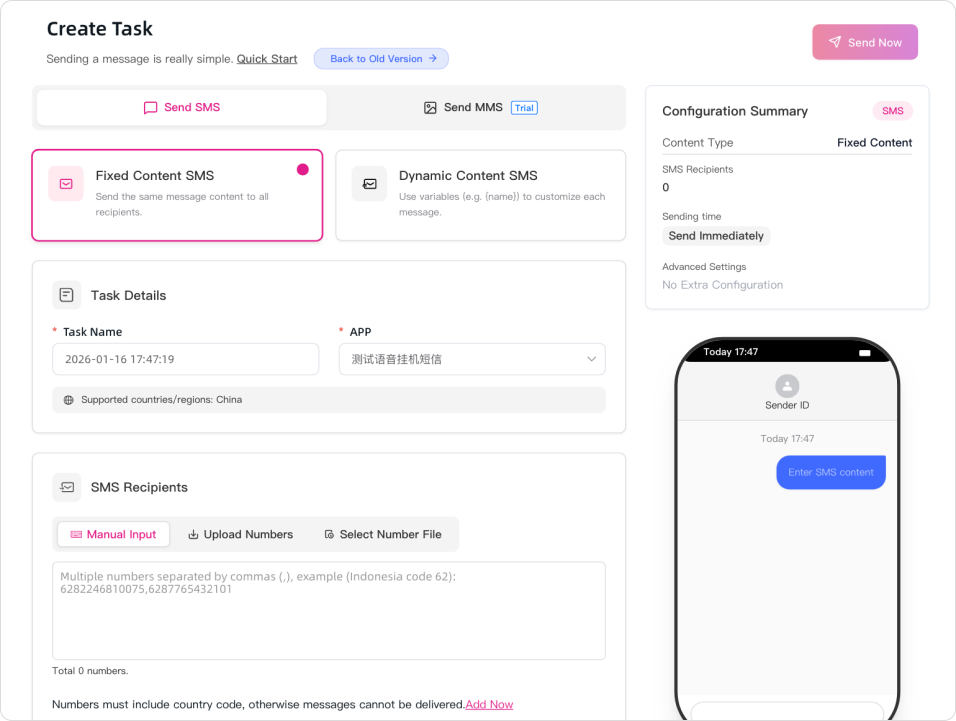
3. Enter SMS Content
Content Type
The following types are supported: a. Fixed-content SMS b. Dynamic-content SMS (supports inserting variables: fixed variables/custom variables)
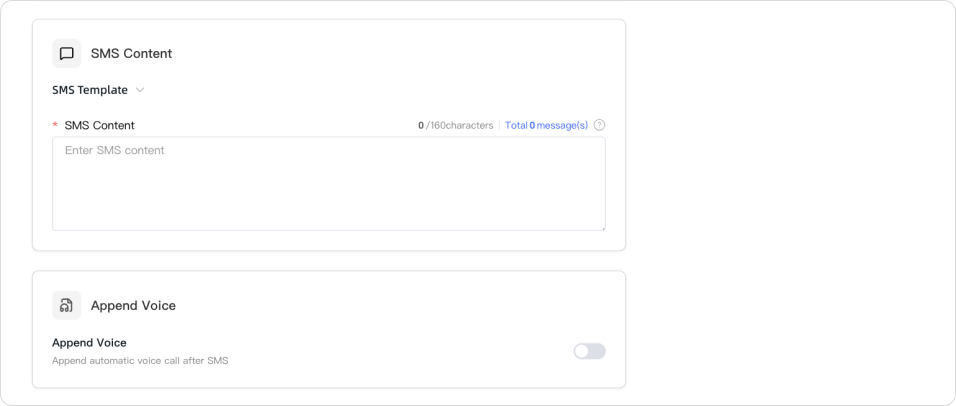
Content Compliance Requirements
Sensitive Words: Please ensure that the SMS content does not contain sensitive words. According to carrier requirements, sensitive content may result in sending failures. If detection is needed, please contact your account manager or customer service staff for assistance.
Links: If the SMS content contains links, please contact us in advance for detection to improve SMS sending success and delivery rates.
Template Requirements: Some countries (such as India) require templates to be configured for sending SMS. Please contact your account manager to configure them for you.
Content Billing Requirements
Following ASCII encoding SMS billing standards: The first non-ASCII SMS is calculated as 70 characters, with subsequent messages calculated at 67 characters per message; the first ASCII SMS is calculated as 160 characters, with subsequent messages calculated at 153 characters per message.
4. Submit for Sending
Set the sending time and click the Send SMS button to submit the task.
Step 3: Advanced Feature Configuration
1. Fill in Sender ID
If you have successfully registered multiple brand Sender IDs on the platform, you can directly select or enter a registered Sender ID in the input box, and the SMS will be displayed to end users with your entered Sender ID. If not filled in or the Sender ID has not been registered, the system will automatically assign a default Sender ID for sending.
2. Task Segmentation
Applicable scenario: Single sending volume exceeds 100,000 messages. It is recommended to set the sending quantity in batches and execute tasks in batches, which helps improve overall sending stability.
Step 4: View Sending Results
After sending is complete, you can go to Task Details to view:
✔ Number of successful sends
✔ Number of failed sends and failure reasons
✔ Sending record details (including numbers, sending time, response status)
For further data analysis, you can use the reporting function or contact your account manager.
Was this page helpful?
Questions about integration? Contact our technical support
LAAFFIC API dedicated TG technical support channel, real-time response to your needs